Accept a judge invitation
Accept the private link sent by the scoring office so the assigned event and position become available to your TallyTrot account.
Invitation links are private. Do not forward the link or use another person's invited email.
Review the assignment
Open the invitation link and check the event, class, arena, judge position, email, and expiry.
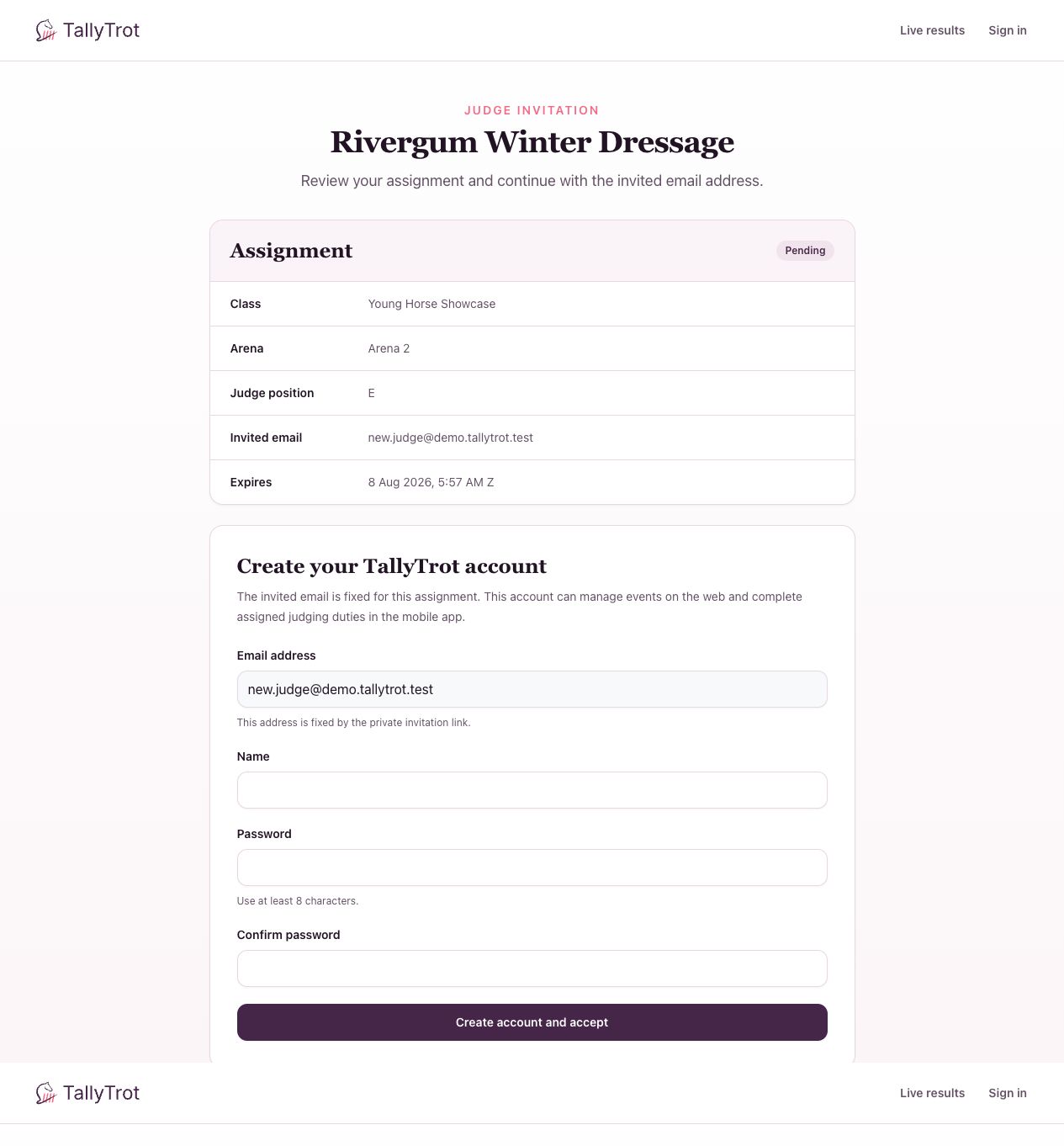
If you are new to TallyTrot
- Confirm that the fixed Email address is yours.
- Enter your Name.
- Create and confirm a password of at least eight characters.
- Select Create account and accept.
TallyTrot takes the assignment email from the invitation. It cannot be changed in the form.
If you already have an account
The page shows Sign in to accept instead of account creation.
- Sign in with the invited email address.
- Confirm the assignment.
- If you are already signed in with the matching account, select Accept judge assignment.
Resolve problems
- Wrong signed-in account: Sign out and reopen the link with the invited account.
- Email does not belong to you: Do not continue. Ask the scoring office to correct the panel.
- Expired invitation: Ask the scoring office to select Renew invitation.
- Already accepted: Sign in to the TallyTrot mobile app with the invited account.
- Unknown link: Ask for a new invitation rather than editing the URL.
Success state
The page shows Invitation already accepted, and the assignment is available when you sign in to the mobile app.
Previous: Assign and invite judges · Next: Score and submit a test