Set up and manage an event
Use the event workspace to check your competition programme, assign judges, control publishing, and follow each ride through scoring.
About these screenshots: All events, people, horses, and email addresses shown in this article are fictional test data. The screenshots were captured from the real TallyTrot interface.
Before you begin
You need access to the event as an organiser or super administrator. If an event or class is missing, ask the event owner to check your event role and judge assignment.
1. Open the event
- Select Events in the main navigation.
- Find the event in Event operations. You can search by event name or source, filter by public status, or change the sort order.
- Select Open event.
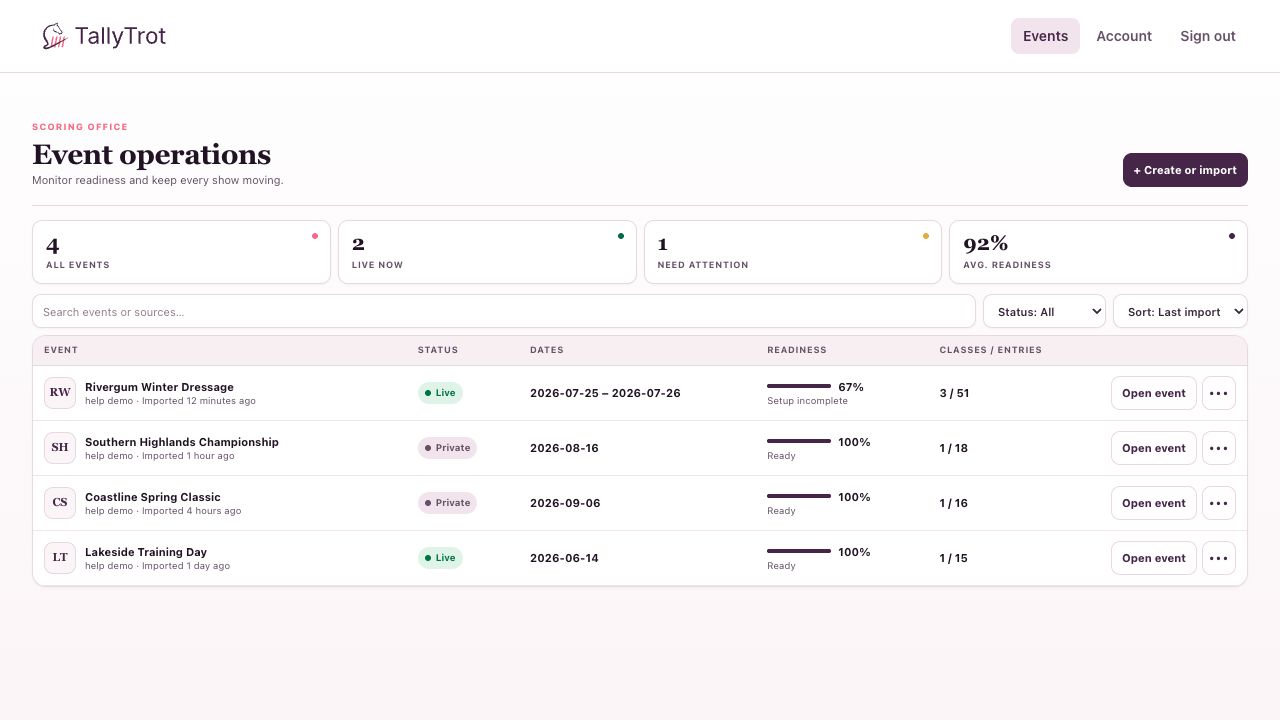
The event list shows whether each event is public or private, its dates, setup readiness, and the number of classes and entries.
2. Check the competition programme
In the event workspace, review each class before scoring begins:
- Confirm the class name, arena, entry count, and judge panel.
- Choose the correct dressage test. Test changes save automatically.
- Check the class status. Needs setup means at least one required item is incomplete.
- Use the class-level GEO publishing switch if verified results from that class should be eligible for GEO publication.
- Select Open class to view ride progress.
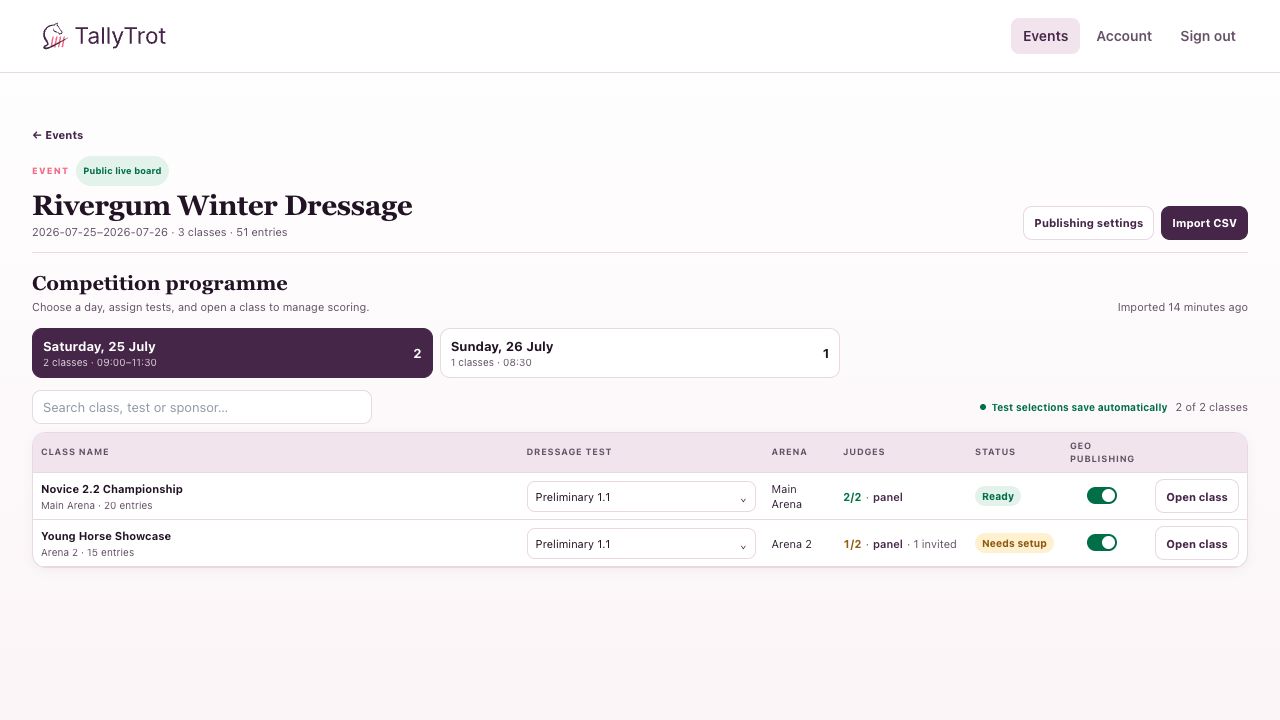
If entries are not present, select Import CSV. Use the supplied template and check the import result before continuing.
3. Assign the judge panel
From the competition programme, select the panel link for a class.
- Choose a position, such as C, M, H, B, E, F, or K.
- Select Add judge.
- Enter the judge's email address in that position.
- Select Save judge assignments.
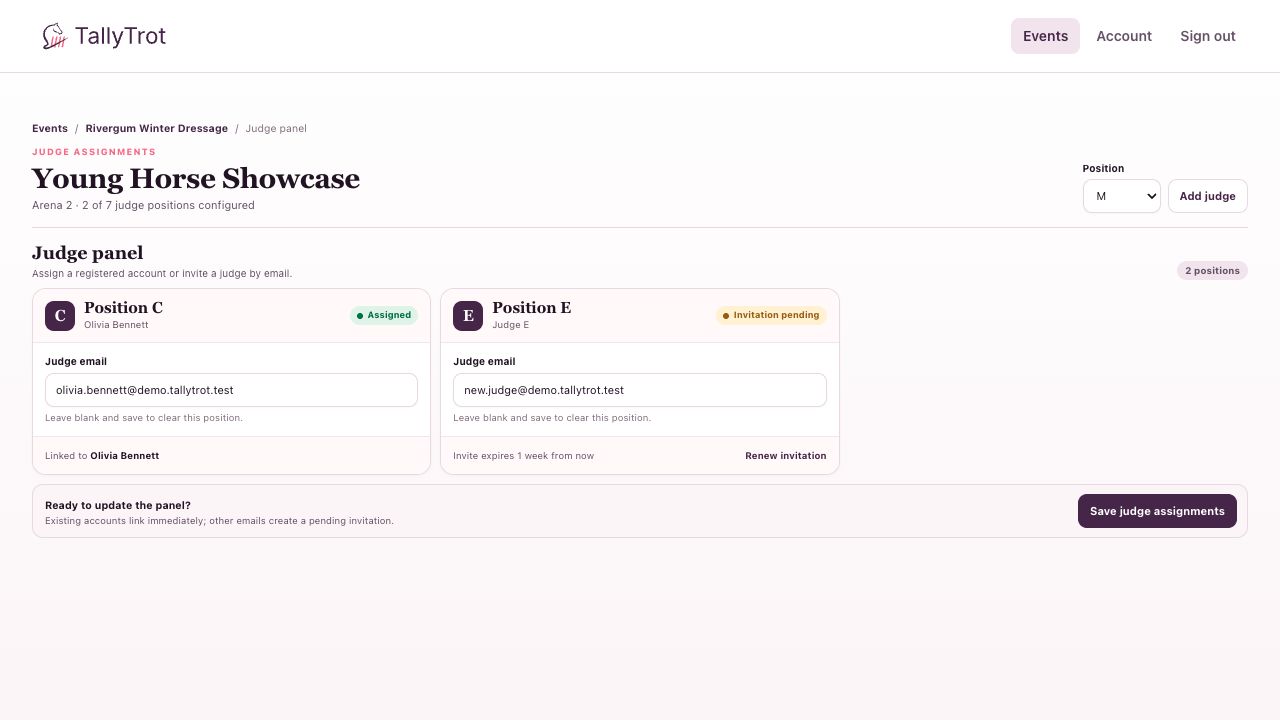
TallyTrot handles the email in one of two ways:
- Assigned: The email belongs to an existing TallyTrot account and is linked immediately.
- Invitation pending: The email does not yet belong to an account. TallyTrot creates an invitation for that judge.
Use Renew invitation if a pending invitation expires. To clear a judge from a position, remove the email and save. Positions that are no longer needed can be deleted when the page offers Delete position.
4. Configure publishing
Return to the event workspace and select Publishing settings.
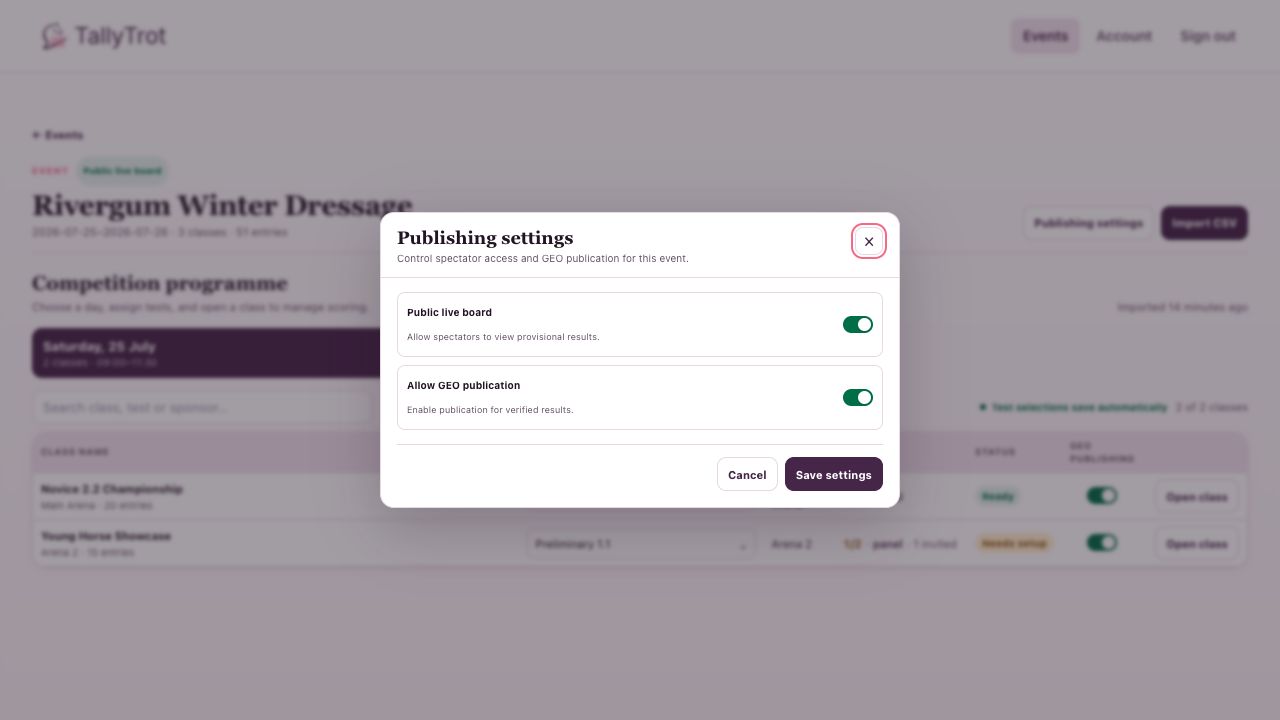
Choose the settings the event requires:
- Public live board lets spectators view provisional results on TallyTrot.
- Allow GEO publication lets verified results be sent to GEO.
Select Save settings. GEO publication only becomes active when it is allowed at both the event and class levels.
Keep publishing off while setup or data checks are still in progress. Turning on a public live board can expose provisional results to spectators.
5. Monitor class progress
Select Open class from the competition programme. The class progress page shows every ride and the state of each judge sheet.
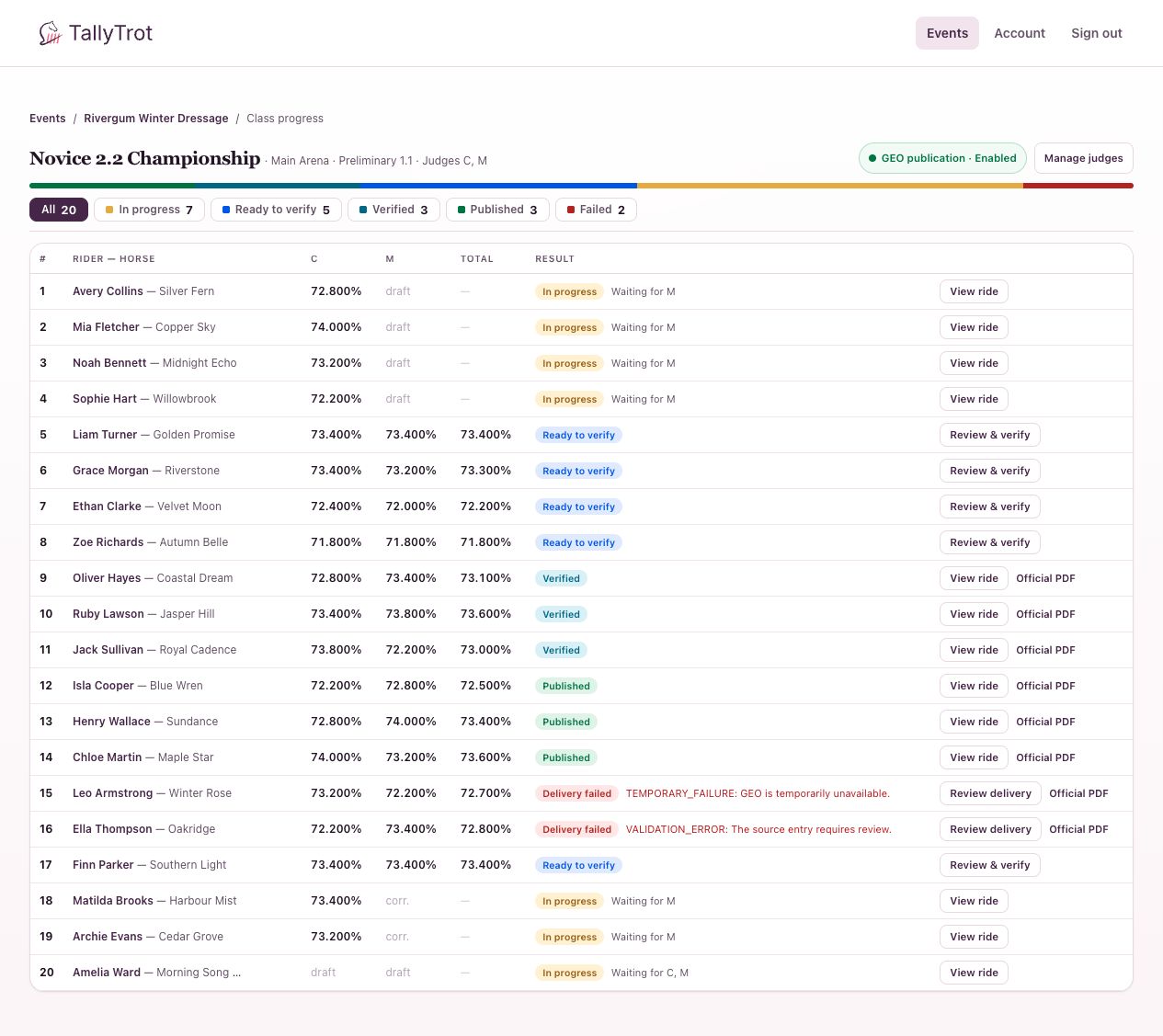
Use the status filters to focus on rides that need action:
- In progress: At least one judge sheet is not ready.
- Ready to verify: All required scoring is available for review.
- Verified: The result has passed the scoring-office check.
- Published: The result is available through the enabled publication channel.
- Failed: A publication or delivery attempt needs attention.
Select View ride to inspect an individual entry. The row shows which judge positions are still outstanding, so you can follow up with the correct judge without opening every sheet.
Quick checks before the class starts
- The correct dressage test is selected.
- Every required judge position is assigned.
- Pending judges have received and accepted their invitations.
- Entries and draw order are present.
- Event and class publishing switches match the organiser's decision.
- The class no longer shows Needs setup.