Create or import an event
Create an empty TallyTrot workspace for a local event, or import an existing programme and draw from Global Entries Online (GEO).
The screenshot uses fictional test data. Never place a real GEO access code in training material or screenshots.
Before you begin
Sign in to TallyTrot and open Events. Select + Create or import.
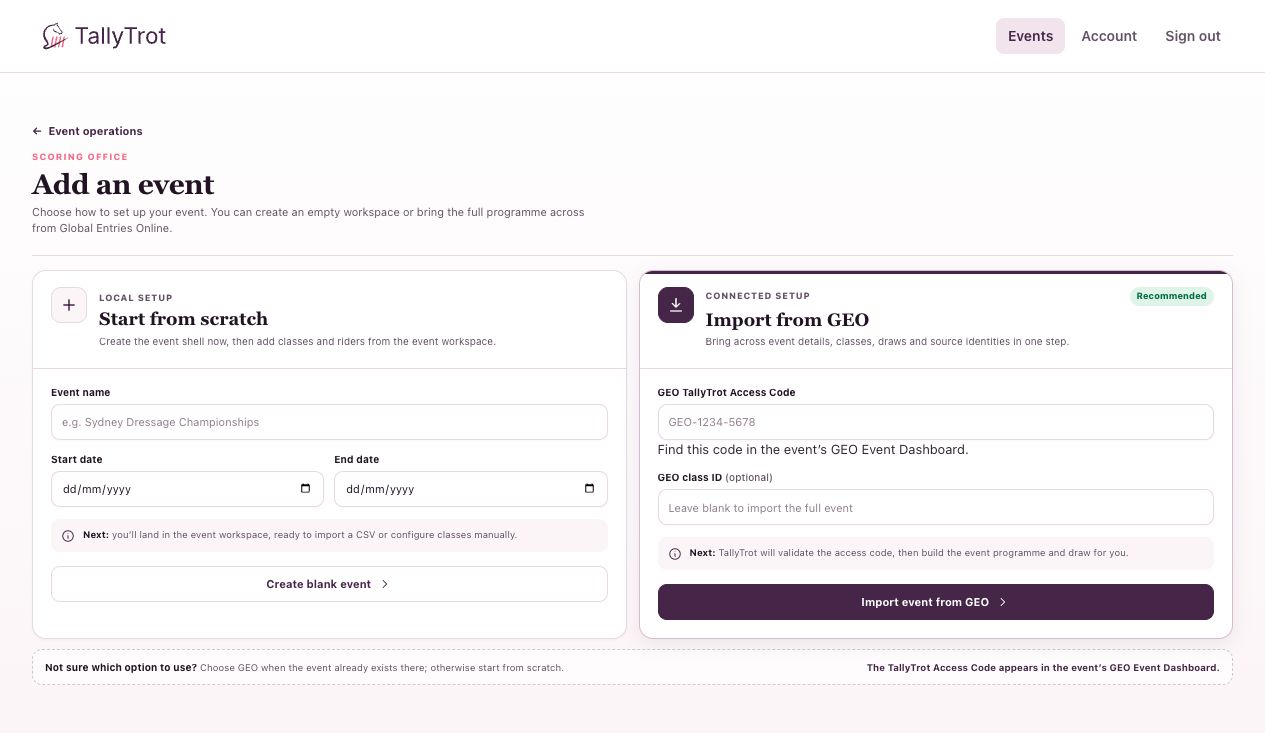
Option 1: start from scratch
Use a local event when the event does not already exist in GEO.
- Under Start from scratch, enter the Event name.
- Choose the Start date and End date.
- Select Create blank event.
TallyTrot creates the event shell, makes you an organiser, and opens the event's class list. The event initially has no classes or riders. Select Import CSV to add the programme and draw.
Option 2: import from GEO
Use GEO when the event programme and draw are already managed there.
- Copy the TallyTrot access code from the event's GEO Event Dashboard.
- Enter it in GEO TallyTrot Access Code.
- To import only one class, enter its numeric ID in GEO class ID. Leave this blank to import the full event.
- Select Import event from GEO.
TallyTrot validates the code and imports event details, classes, entries, source identities, and the draw.
If the event is already managed in TallyTrot
An access code permits TallyTrot to read the GEO draw, but it does not grant organizer access to an event that another person already manages.
If TallyTrot reports that organizer access is required:
- Select Request organizer access.
- Wait for an existing organizer or Super Admin to review the request.
- After approval, the event appears in Event operations and you can import the latest GEO revision.
Repeated requests remain pending rather than creating duplicates. If a request is rejected, contact a Super Admin. TallyTrot does not disclose another organizer's personal details to the requester.
If the import is rejected
- Confirm that you copied the TallyTrot access code, not another event identifier.
- Remove spaces accidentally added before or after the code.
- If using a class ID, confirm it belongs to the same GEO event.
- Ask the GEO event owner to create or renew the code if it has been revoked.
- Do not repeatedly try unrelated codes.
Success state
The event appears in Event operations. Open it and confirm its dates, class count, entry count, tests, and judge panels before enabling publication.
Previous: Set up and manage an event · Next: Import entries with a CSV file