Assign and invite judges
Build the judge panel for a class by linking existing TallyTrot accounts or inviting new judges by email.
Open the judge panel
- Open the event.
- Find the class in Competition programme.
- Select the panel link.
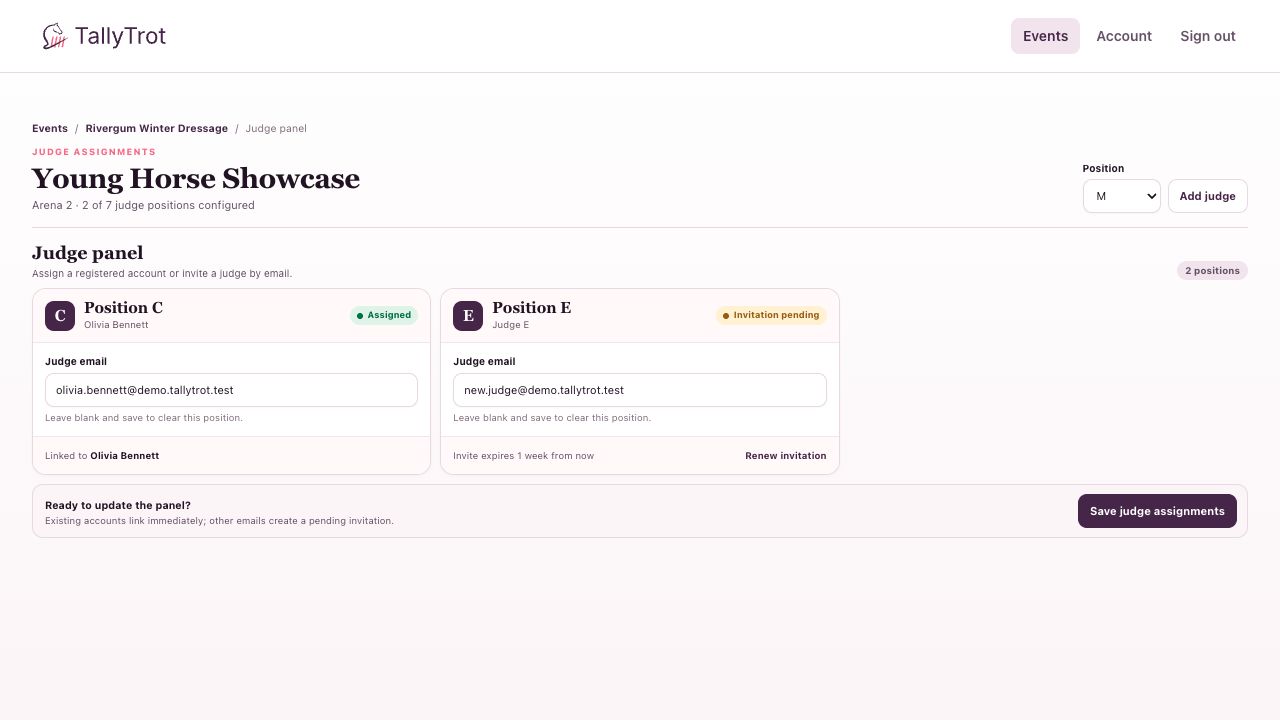
Add a position
- Choose a value from Position.
- Select Add judge.
- Enter the judge's email address in the new card.
- Select Save judge assignments.
Position C cannot be deleted. Other positions can be deleted only when they have no assigned judge, active invitation, source assignment, or submitted score.
Understand assignment states
- Assigned: The email belongs to an existing account. The position is linked immediately.
- Invitation pending: No matching account exists yet. TallyTrot creates a private invitation.
- Unassigned: The panel position exists but has no email.
Use Renew invitation when a pending invitation expires. Renewal invalidates the earlier private link.
Change or clear a judge
- To replace a judge, enter the replacement email and save.
- To clear a position, remove its email and save.
- Never reuse one judge's email for two positions in the same class.
- Confirm the spelling before saving; an incorrect address sends the invitation workflow to the wrong identity.
Before competition day
Check that every required card shows Assigned. A pending invitation counts as configured but does not make the panel fully staffed.
Success state
The event programme shows the correct allocated count, such as 2/2 panel, and the class changes from Needs setup to Ready when its other requirements are also complete.
Previous: Select dressage tests and finish class setup · Next: Accept a judge invitation