Import entries with a CSV file
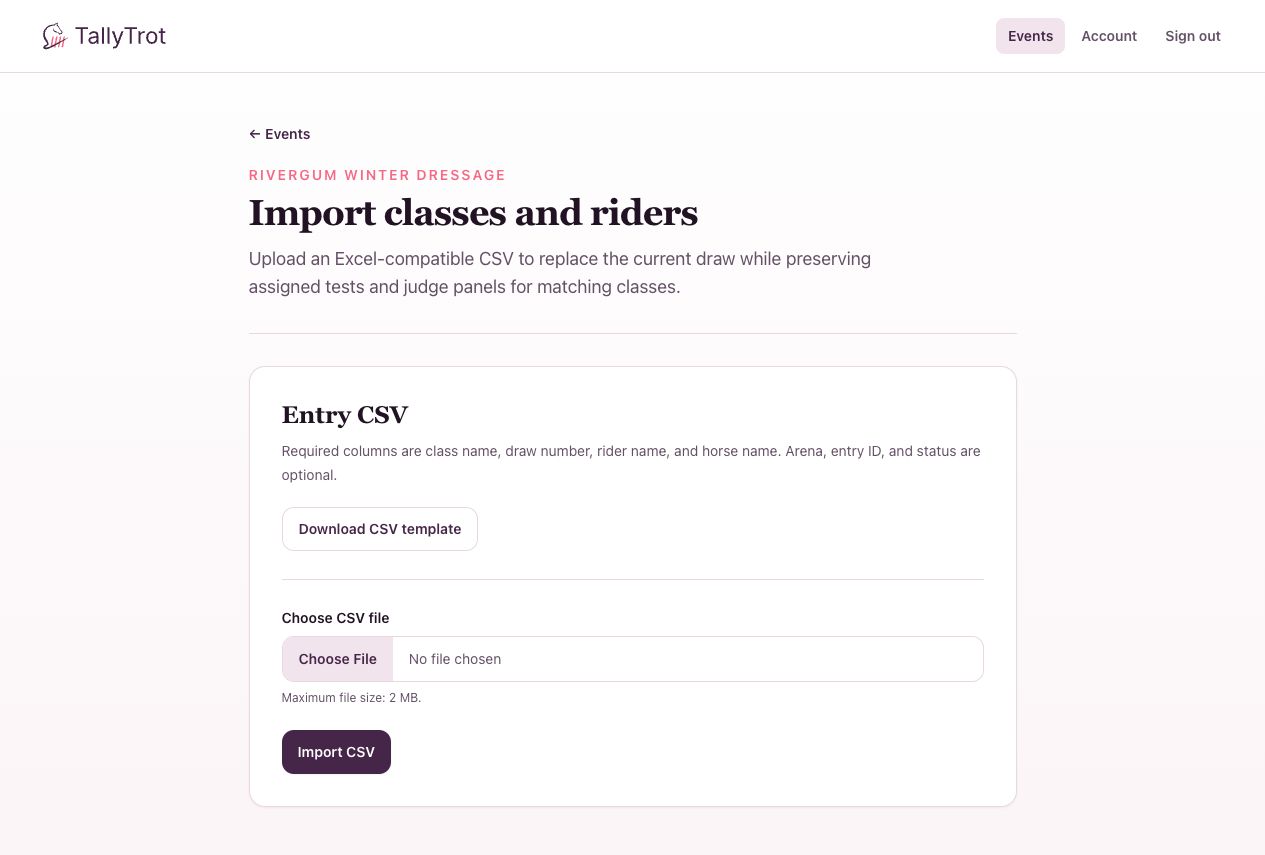
Use a CSV file to add or replace classes and riders in an event that is being managed locally.
Importing replaces the current draw. Matching classes keep their assigned tests and judge panels, but you should still review the complete event afterward.
Open the importer
- Open Events and select the event.
- Select Import CSV.
Prepare the file
Select Download CSV template and edit a copy in Excel, Numbers, Google Sheets, or another spreadsheet tool.
Every row must contain:
- class name;
- draw number;
- rider name;
- horse name.
Arena, entry ID, and status are optional. Keep one ride per row and do not rename the required column headers.
The template labels the entry ID column entry_id (optional) and leaves its sample cells blank. You can leave it blank and TallyTrot will generate an ID for each ride. If you already have entry IDs from another system, keep them the same when importing an updated draw. Existing files using the entry_id header still work.
Import the draw
- Save or export the workbook as CSV.
- Under Choose CSV file, select the file.
- Confirm that it is no larger than 2 MB.
- Select Import CSV.
Review the result
After a successful import:
- After uploading, TallyTrot opens the event's class list.
- Confirm the class and entry totals.
- Check the draw order in every class.
- Confirm that matching classes retained the correct dressage tests and judge panels.
- Resolve every Needs setup class before scoring starts.
Common import problems
- Missing required column: Download a fresh template and copy the data into it.
- Duplicate draw number: Give each ride a unique draw number within its class.
- Blank rider or horse: Complete the combination before importing.
- Wrong delimiter or workbook format: Export as CSV rather than uploading an
.xlsxfile. - Unexpected replacement: Stop and compare the source file with the event. Reimport the correct full draw rather than editing isolated records blindly.
Success state
The event shows the expected class and entry totals, and every ride appears in the correct draw order.
Previous: Create or import an event · Next: Select dressage tests and finish class setup